 Popcorn Panic
How to delete game data on an Android phone, step by step
A fresh start for a sibling, a phone being handed down, or just tidying up. Here are the three ways to wipe a game, and what each one leaves behind.
In this guide
There are three ways to delete game data on Android. The game's own reset option (often in Settings inside the game) is the cleanest. Settings → Apps → the game → Storage → Clear storage (called Clear data on some phones) wipes everything the game saved on the device but keeps it installed. Uninstalling removes the app and its local data. Clear cache alone does not erase progress. Games with accounts or cloud saves may bring progress back, so check that first.
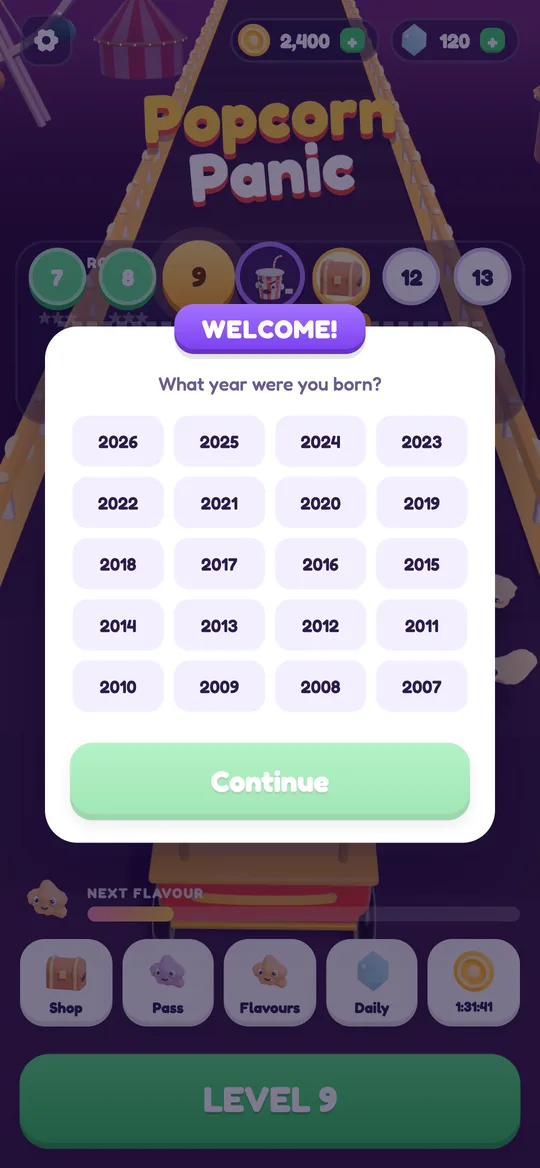
Maybe a younger brother wants to start the game from level 1. Maybe an old phone is going to a cousin. Or a child typed the wrong birth year at the first launch and you want the game to ask again. In all three cases, the answer is the same: delete the game's data and start fresh.
Android gives you a few ways to do this, and they are not quite the same. This guide walks through each one, explains what it erases and what it does not, and uses our own game, Popcorn Panic, as a worked example because we know exactly where its data lives. If you are setting up a phone for a child, our Popcorn Panic parent guide covers the rest of the first launch.
Before you delete anything
Deleting game data is usually permanent. Take a minute to check two things first.
- Does the game use an account? Some games save progress to a login, a Google Play Games profile or their own servers. Clearing the phone may not touch that copy, and progress can come back when you sign in again. If you want a true reset of an account game, look for a reset or delete option inside the game or on the developer's website.
- Is anyone else using this save? On a shared family tablet, one game save often belongs to more than one child. Ask before you wipe it.
Games that keep everything on the phone are simpler: once the local data is gone, it is gone. Popcorn Panic is one of these. It has no accounts and no sign-in, and its progress is saved only on the device.
Way 1: use the game's own reset
If the game has a delete or reset button, use it. The developer built it for exactly this, so it clears the right things and nothing else.
In Popcorn Panic it works like this:
- Open the game and tap the gear in the top-left corner of the home screen to open Settings.
- Find Delete my data. It sits under the sound and privacy rows, with the note "Erases your progress on this device".
- Tap Delete. If the player said they are under 13, a grown-up question appears first: a short multiplication sum. This is the parental gate, and it stops a child from wiping their progress by accident.
- Read the warning and confirm. The card says that levels, coins and flavours on this device are erased and that this cannot be undone. Tap Delete everything, or Keep my data to back out.
- Let the game restart. It goes back to the first level and shows the age question again, as if it had just been installed.
That last step is handy for parents. If the birth year was entered wrongly the first time, a reset is the way to answer it again, which matters because the year decides how ads work for that player. Our article on child-directed ads explains what changes for players under 13.
Way 2: Clear storage in Android Settings
Every Android phone can clear an app's data from the system Settings, even when the game has no reset button. Menu names change a little between phone makers and Android versions, but the path is close to this:
- Open Settings on the phone (the gear icon in the app list or the quick settings panel).
- Tap Apps. On some phones it is called Apps & notifications or Applications.
- Find the game. You may need to tap See all apps first, then scroll or search for its name.
- Tap Storage (or Storage & cache).
- Tap Clear storage. Some phones call it Clear data. Confirm when the phone warns you that the app's data will be deleted.
- Open the game again. It should start like a fresh install.
This removes everything the game saved inside its own storage on the phone: progress, settings and any answers from the first launch. The app itself stays installed, so there is nothing to download again.
Clear cache vs clear storage
The Storage page usually shows two buttons, and they are easy to mix up.
- Clear cache deletes temporary files the app can rebuild, such as downloaded images. It frees a little space and can fix small glitches. Your progress stays.
- Clear storage (or Clear data) deletes the app's saved data. Your progress goes.
So if your goal is a fresh start, Clear cache will not do it. If your goal is only to free space or fix a glitch, start with Clear cache and leave the save alone.
Way 3: uninstall the game
Uninstalling removes the app and the data it kept on the phone. It is the simplest choice when nobody plans to play the game again.
- Long-press the game's icon and tap Uninstall, or open the Google Play Store, find the game and tap Uninstall.
- Confirm.
One thing to know: Android can back up some apps' data to the phone's Google account and put it back when the app is reinstalled. If you reinstall a game later and old progress reappears, open the game's own reset (Way 1) or use Clear storage (Way 2) for a clean start.
For Popcorn Panic, the privacy policy says that uninstalling deletes your levels, coins and other saved data, and that Delete my data in the game does the same. Our delete your data page lists both options.
What gets erased in Popcorn Panic
When the local data is deleted, these all go back to the start:
- the level you reached
- coins and gems
- flavours you unlocked
- upgrades for Start crowd, Pop speed and Pop power
- season pass stars
- settings such as sound
- the birth year from the age question

Because there is nothing to buy in Popcorn Panic, a reset never loses anything that was paid for. Everything can be earned again by playing.
The game has no server of its own, so there is nothing for DIGCY to delete on its side. Ads come from Google, and Google handles that data. You can reset or delete the advertising ID in the phone's Google settings, and players 13 and over can change ad consent in the game's Settings under Ad privacy choices.
FAQ
Does clearing cache delete game progress on Android?
No. Clear cache only removes temporary files the app can rebuild. To erase progress, use the game's own reset, Clear storage (also called Clear data) in Settings, or uninstall the game.
Will uninstalling a game delete my progress?
It deletes the data the game saved on the phone. Games with accounts or cloud saves can restore progress when you sign in again, and Android's own backup can sometimes bring app data back after a reinstall.
How do I reset Popcorn Panic to level 1?
Tap the gear on the home screen, then Delete my data, and confirm. Players under 13 answer a grown-up question first. The game restarts at the first level with the age question.
Can I change the birth year in Popcorn Panic?
The age question is asked on the first launch. To answer it again, use Delete my data in Settings, which resets the game and shows the question once more.
Does Popcorn Panic keep my data on a server?
No. Popcorn Panic has no accounts and no server of its own. Progress is saved only on your device, so deleting it on the phone deletes it completely.