 Popcorn Panic
How to turn off in-app purchases on Android for kids
There is no one switch, but three settings in Google Play and Family Link close the gaps. Here is each one, step by step.
In this guide
Android has no single switch that turns off in-app purchases. The closest you can get is to set Google Play's purchase verification to Always, so every purchase needs your password or fingerprint, and, if your child has their own account, to set Family Link to require your approval for in-app purchases. Keep your Google password private and you have a strong lock.
Many free games and apps sell extra coins, gems or items from inside the game. A child tapping a shiny button can end up on a payment screen in a couple of taps. If you are wondering how to turn off in-app purchases on Android, the honest answer is that Google does not offer one off switch. What it does offer is a set of settings that, used together, stop a purchase from going through without you.
This guide walks through each one, in the order we would set them up. The menu names come from Google's own help pages. Play Store screens change from time to time, so if a label looks slightly different on your phone, look for the nearest match.
Why there is no single off switch
In-app purchases on Android run through Google Play's billing system. Google lets you control who can approve those purchases, but not hide them from every app. That gives you three useful tools:
- Purchase verification asks for your password or fingerprint before a purchase on this device.
- Family Link purchase approvals send every purchase request from your child's own account to you.
- Content restrictions limit which apps can be downloaded in the first place, using a PIN.
One thing to know up front: all of these only cover purchases made through Google Play's billing system. They are the right lock for games from the Play Store, which is where almost every children's game comes from.
Step 1: Set purchase verification to Always
This is the most important setting, and it works even if your child plays on your phone with your account. Google calls it purchase verification (older guides call it "require authentication").
- Open the Google Play app.
- Tap your profile picture at the top right.
- Tap Payments & subscriptions, then Purchase verification.
- Open Verification frequency (on some phones it is called Verification requirement).
- Choose Always, then confirm with your Google password.
The other choices are Every 30 minutes and Never. Avoid both if a child uses the phone. With the 30-minute option, a purchase made soon after you bought something yourself can go through without a second check.
Google also says verification is always required for apps and games designed for ages 12 and under, whatever your setting. It is still worth choosing Always, because children often play games that are made for everyone.
Step 2: Turn on Family Link purchase approvals
If your child has their own Google account supervised with Family Link, you can make every purchase wait for you. The request appears on their screen, and nothing is bought until you approve it.
In the Family Link app:
- Open Family Link and select your child at the top left.
- Go to the Controls tab and select Google Play.
- Under Purchases & download approvals, select Require approval for.
- Choose All content for the tightest control, or In-app purchases only if you are happy for your child to download free apps alone.
In the Play Store app (as the family manager):
- Tap your profile picture, then Settings, then Family.
- Tap Manage family members and pick your child.
- Tap Purchase approvals and choose an option.
When your child asks for something paid, they see a screen asking for your password. You can approve it in person on their device. For free downloads you can also approve or deny from a notification on your own phone, so keep Family Link notifications switched on.
Step 3: Add a content restriction PIN
Purchase locks stop spending. Content restrictions stop the wrong apps arriving in the first place, which means fewer games built around a shop.
- In Google Play, tap your profile picture, then Settings.
- Tap Family, then Content restrictions.
- Set up a PIN that your child does not know.
- Choose a rating limit for apps and games, then save.
Restrictions apply only to the device where you set them. For a Family Link account, set them in the app under Controls and Google Play instead. One limitation: restricted apps can still show up in search results, so the PIN matters more than the filter.
Step 4: Check the game itself
Settings protect the phone. It also helps to know how a game makes its money before your child starts. A quick check takes a few minutes:
- Read the Play Store listing. Scroll to the small line under the install button. Contains ads and In-app purchases are both shown there when they apply.
- Open the shop once yourself. Look for anything priced in real money, and for random boxes you can buy.
- Look at the AD buttons. Are videos a choice, or do they interrupt play?
- Look for a grown-up gate. Good children's games ask an adult question before outside links or settings that matter.
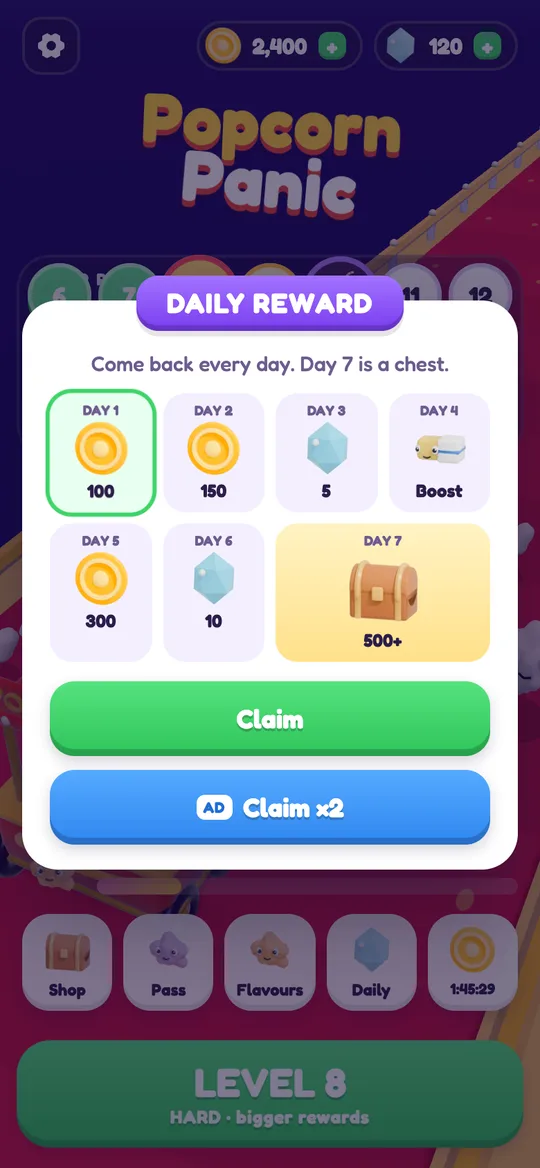
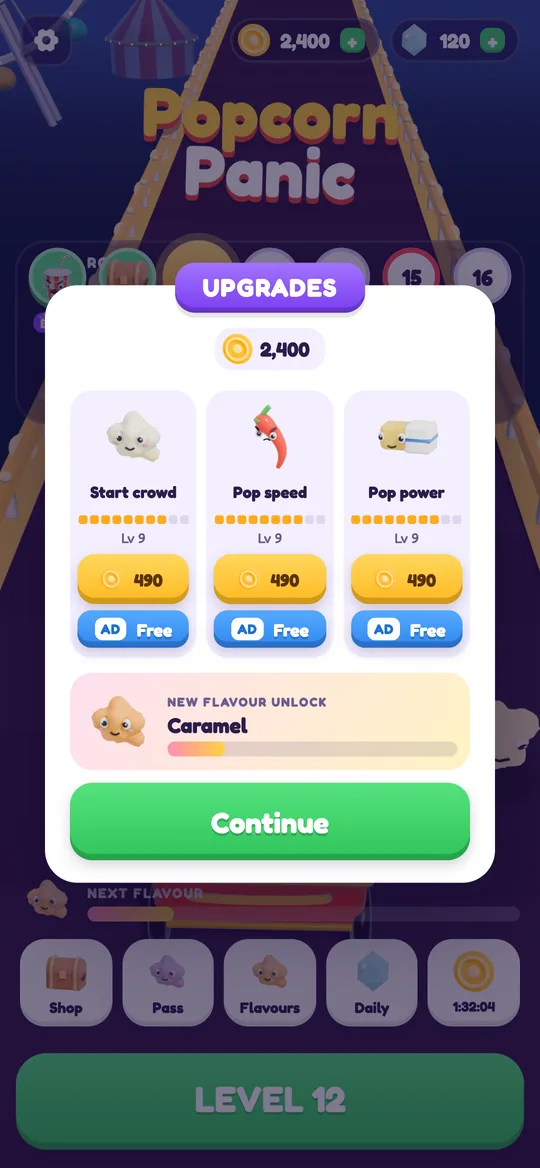
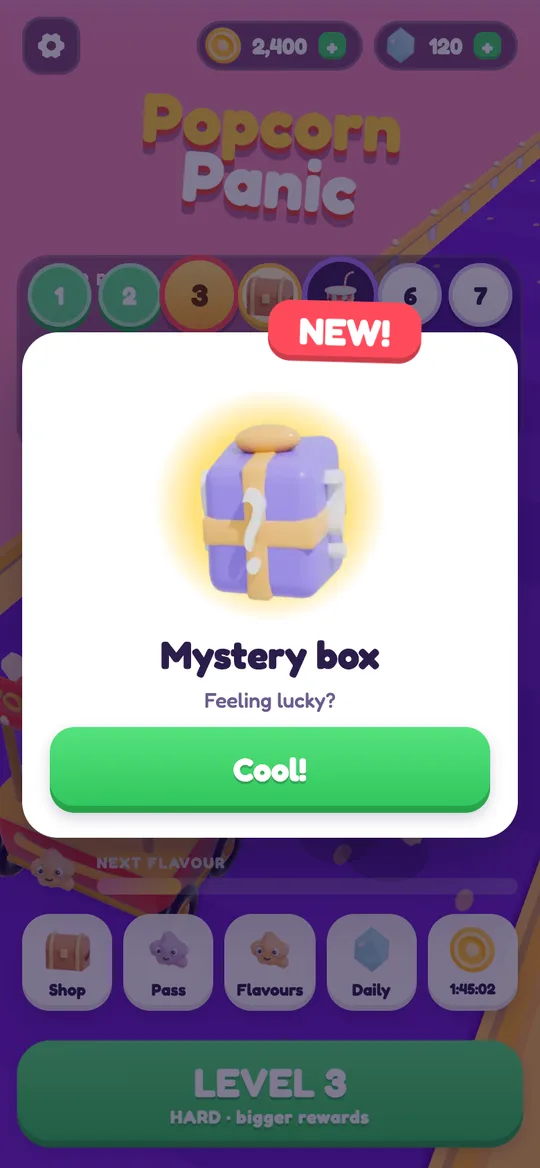
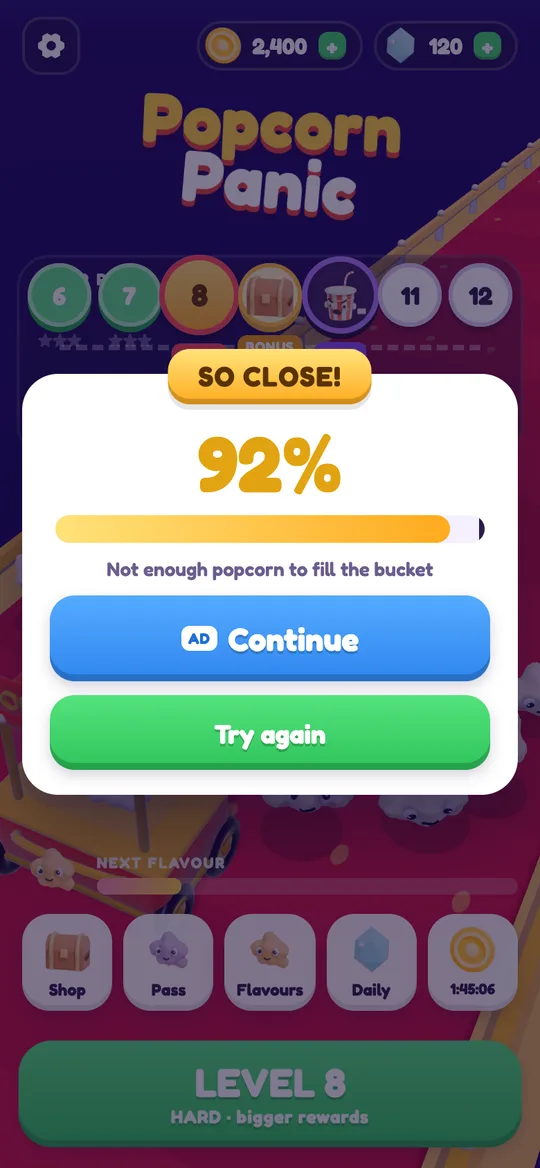
Popcorn Panic, our popcorn crowd runner, is a simple example. It has no in-app purchases at all: coins, gems and flavours are all earned by playing, and the mystery boxes are picked up on the road. Our Popcorn Panic parent guide explains the ads and the age question in full, and our guide on how to earn more coins without paying shows what a game economy looks like when there is nothing to buy.
Talk about it as well
Locks work best when your child knows why they are there. Keep it short and calm:
- Explain that some buttons cost real money, even when they look like part of the game.
- Agree a rule: ask before tapping anything with a price or a box on it.
- Praise the asking, not just the not-buying, so they keep coming to you.
If your child is new to the game, our beginner's guide to Popcorn Panic covers the controls and gates in a few minutes.
FAQ
Can I turn off in-app purchases completely on Android?
Not with one switch. Set Google Play purchase verification to Always and, for a child's own account, turn on Family Link purchase approvals. Together they stop purchases going through without you.
Does purchase verification work if my child uses my phone?
Yes. It is set per device, so every purchase made through Google Play on that phone asks for your password, as long as your child does not know it and biometrics are turned off.
What does In-app purchases only mean in Family Link?
Your child can download free apps on their own, but any purchase inside an app needs your approval first. Choose All content if you also want to approve every download.
Do these settings cover every way to pay?
They cover purchases made through Google Play's billing system, which is how games from the Play Store charge. Payments made outside Google Play are not covered.
Does Popcorn Panic have in-app purchases?
No. Popcorn Panic has nothing to buy. Coins, gems, flavours and the season pass are all earned by playing or by an optional reward video.